# Outlook


# Signatur

Standard-Signatur downloaden und anpassen. [Online-Editor für Signaturen](https://followyoureyes.de/blog/email-client-signatur-online-erstellen)

# Abwesenheitsmeldung hinterlegen

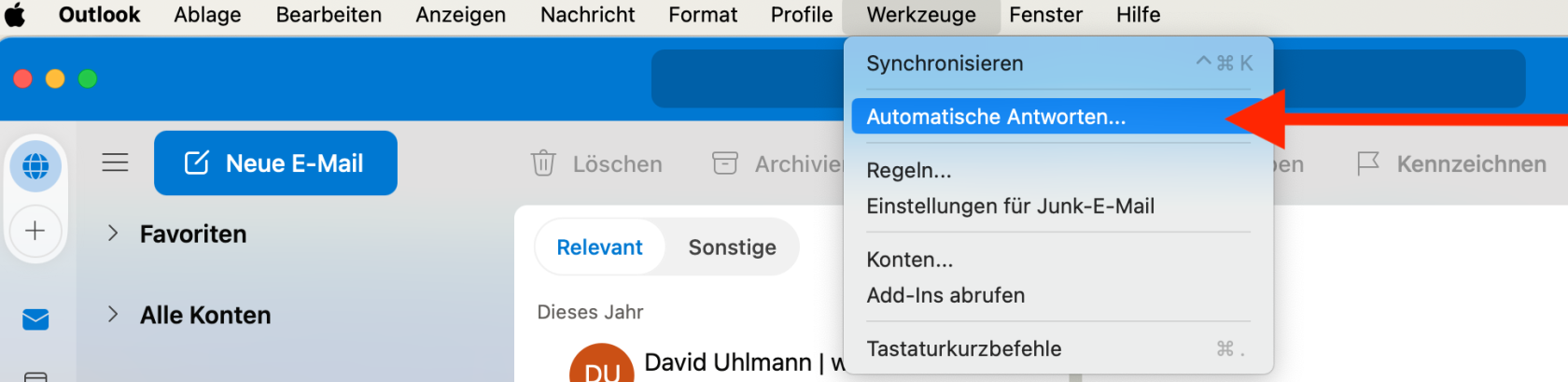
<table border="1" id="bkmrk-outlook-%3E-men%C3%BC-werkz" style="border-collapse: collapse; width: 100%; height: 675.3px;"><colgroup><col style="width: 50%;"></col><col style="width: 50%;"></col></colgroup><tbody><tr style="height: 113.033px;"><td style="height: 113.033px;">Outlook &gt; Menü **Werkzeuge** &gt; **Automatische Antworten**

  
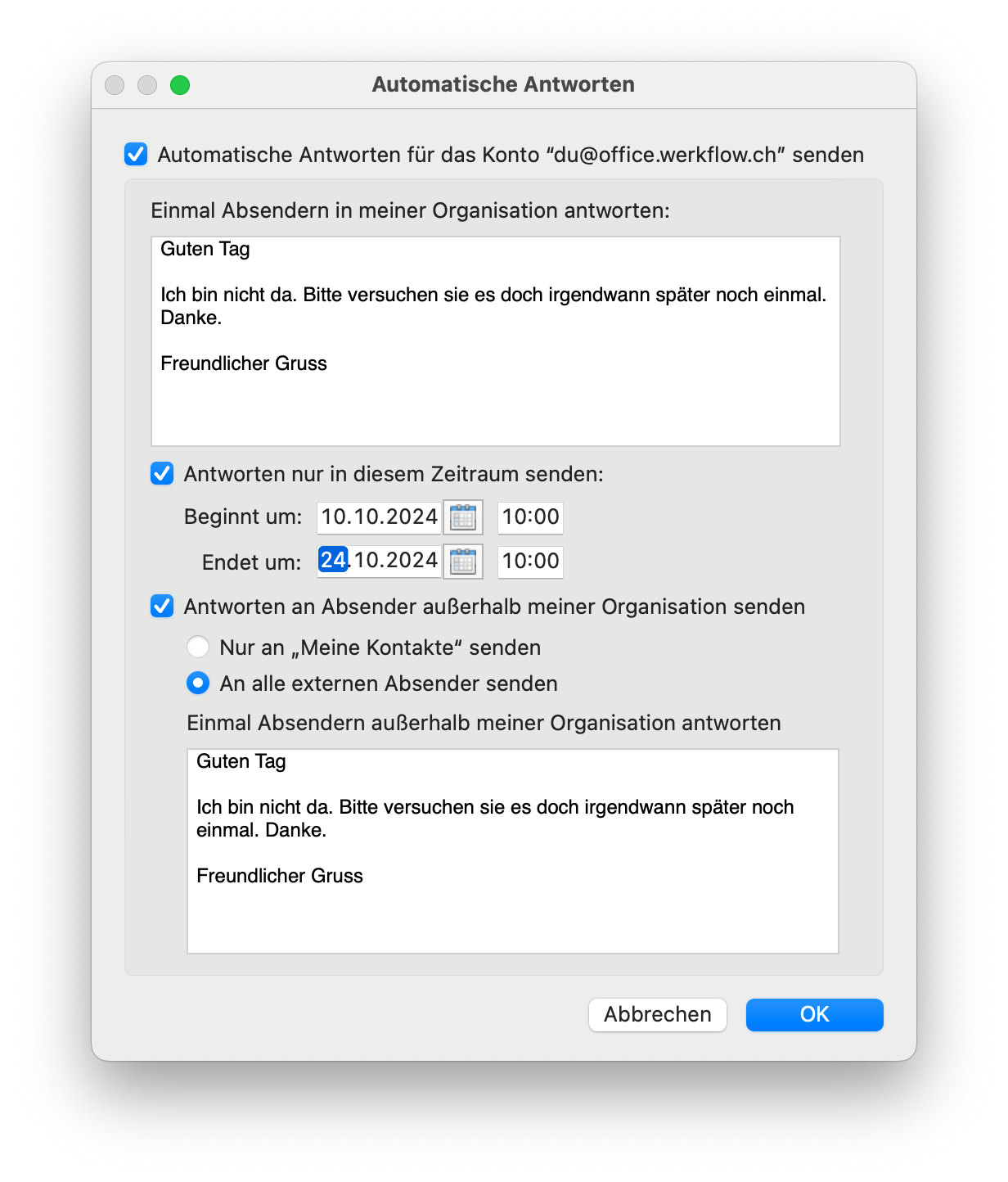
</td><td style="height: 113.033px;">[![Bildschirmfoto 2024-10-10 um 10.07.35.png](https://manual.ssmarchitekten.ch/uploads/images/gallery/2024-10/scaled-1680-/bildschirmfoto-2024-10-10-um-10-07-35.png)](https://manual.ssmarchitekten.ch/uploads/images/gallery/2024-10/bildschirmfoto-2024-10-10-um-10-07-35.png)</td></tr><tr style="height: 472.867px;"><td style="height: 472.867px;">Die Antworten können nach Personen **innerhalb** der Organisation (**oberes Feld**) und nach Personen **ausserhalb** der Organisation (**unteres Feld**) eingegeben werden.

In der Mitte kann das Start- und Enddatum gesetzt werden.

</td><td style="height: 472.867px;">[![Bildschirmfoto 2024-10-10 um 10.08.49.png](https://manual.ssmarchitekten.ch/uploads/images/gallery/2024-10/scaled-1680-/bildschirmfoto-2024-10-10-um-10-08-49.png)](https://manual.ssmarchitekten.ch/uploads/images/gallery/2024-10/bildschirmfoto-2024-10-10-um-10-08-49.png)

</td></tr><tr style="height: 29.8px;"><td style="height: 29.8px;">Vorlage für Abwesenheitsmeldung  
</td><td style="height: 29.8px;">```
Guten Tag

Sie erreichen mich usw.
```

</td></tr></tbody></table>

# Mail-Ordner für andere Benutzer freigeben

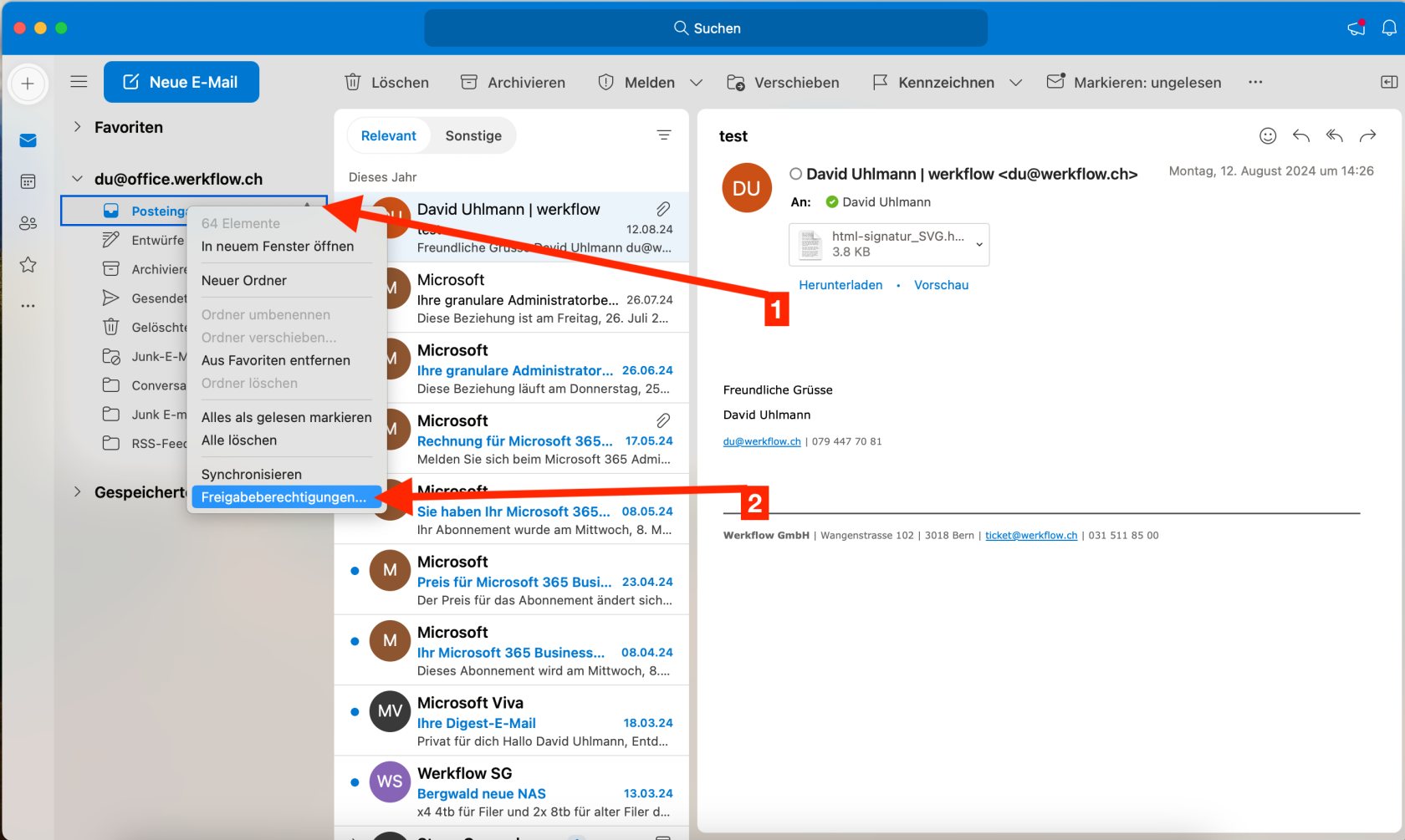
<table border="1" id="bkmrk-rechtsklick-auf-den-" style="border-collapse: collapse; width: 100%; height: 2281.5px;"><colgroup><col style="width: 50%;"></col><col style="width: 50%;"></col></colgroup><tbody><tr style="height: 250.5px;"><td style="height: 250.5px;">**Rechtsklick** auf den gewünschten Ordner und auf **Freigabeberechtigungen** klicken.</td><td style="height: 250.5px;">[![Bildschirmfoto 2024-10-10 um 09.43.54.png](https://manual.ssmarchitekten.ch/uploads/images/gallery/2024-10/scaled-1680-/SI7bildschirmfoto-2024-10-10-um-09-43-54.png)](https://manual.ssmarchitekten.ch/uploads/images/gallery/2024-10/SI7bildschirmfoto-2024-10-10-um-09-43-54.png)

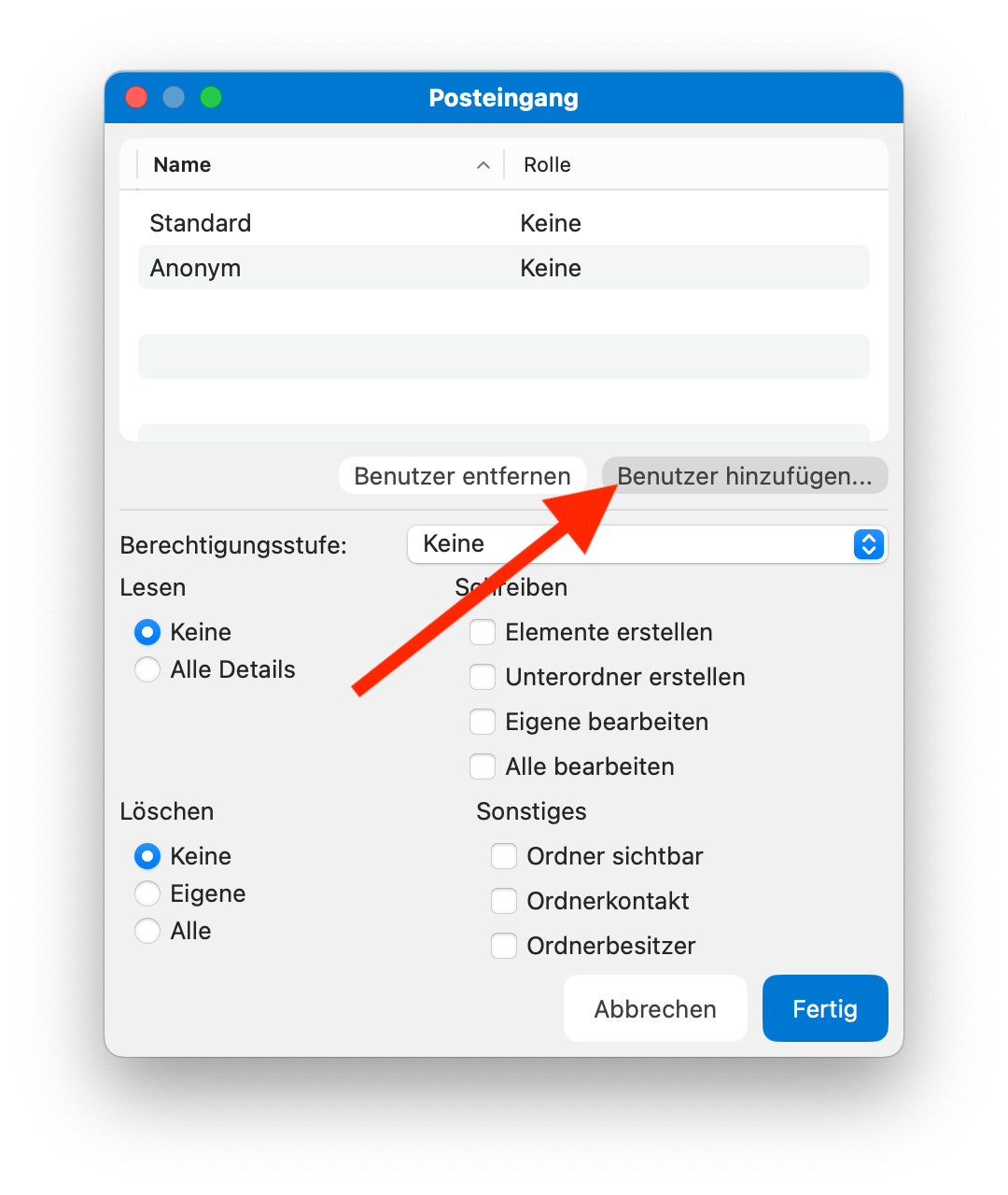
</td></tr><tr style="height: 477.95px;"><td style="height: 477.95px;">Auf **Benutzer hinzufügen**  
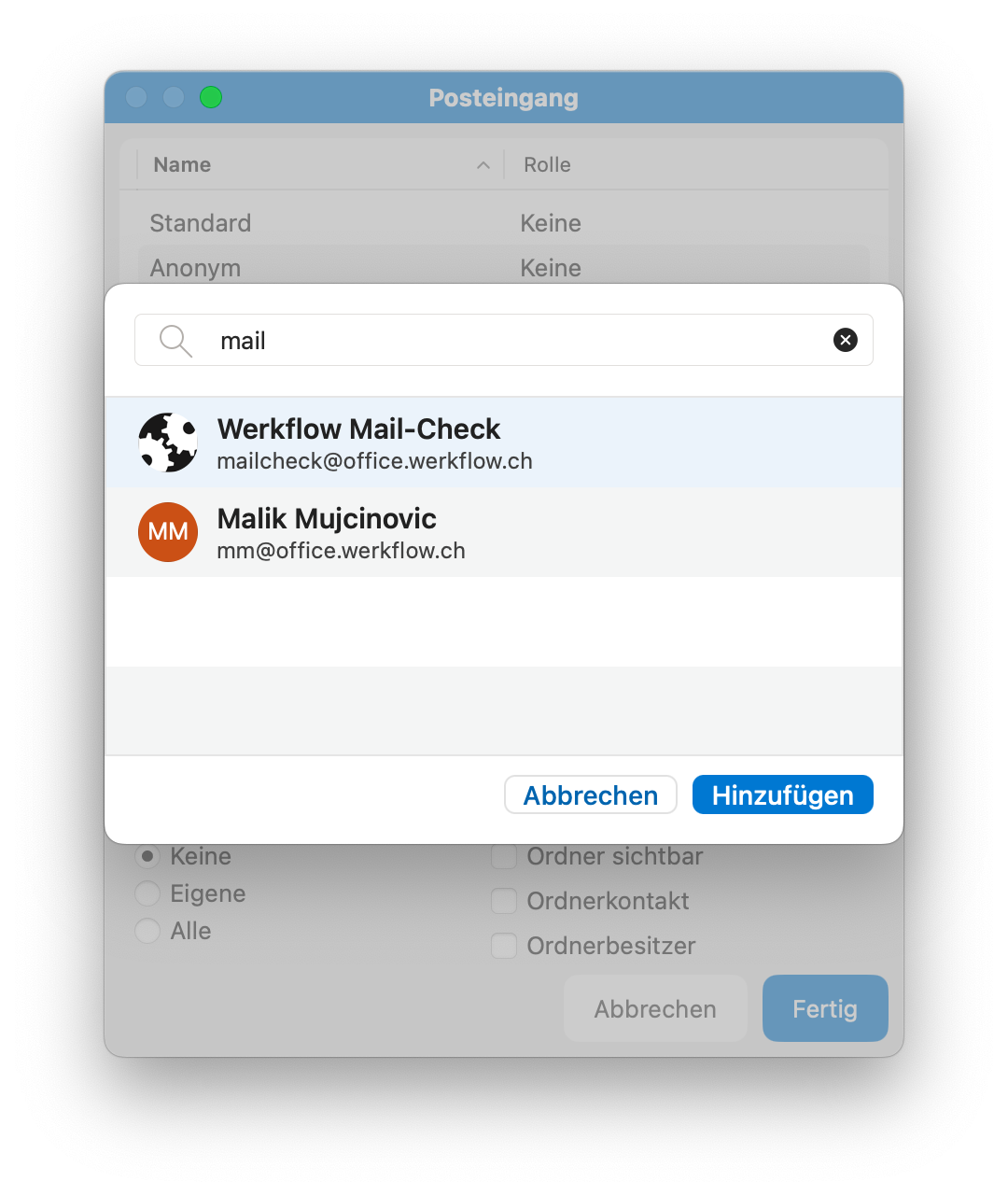
</td><td style="height: 477.95px;">[![Bildschirmfoto 2024-10-10 um 09.44.07.png](https://manual.ssmarchitekten.ch/uploads/images/gallery/2024-10/scaled-1680-/bildschirmfoto-2024-10-10-um-09-44-07.png)](https://manual.ssmarchitekten.ch/uploads/images/gallery/2024-10/bildschirmfoto-2024-10-10-um-09-44-07.png)</td></tr><tr style="height: 477.95px;"><td style="height: 477.95px;">Und die Adresse oder den Vornamen eingeben, auswählen und auf **Hinzufügen**.  
</td><td style="height: 477.95px;">[![Bildschirmfoto 2024-10-10 um 09.44.20.png](https://manual.ssmarchitekten.ch/uploads/images/gallery/2024-10/scaled-1680-/bildschirmfoto-2024-10-10-um-09-44-20.png)](https://manual.ssmarchitekten.ch/uploads/images/gallery/2024-10/bildschirmfoto-2024-10-10-um-09-44-20.png)

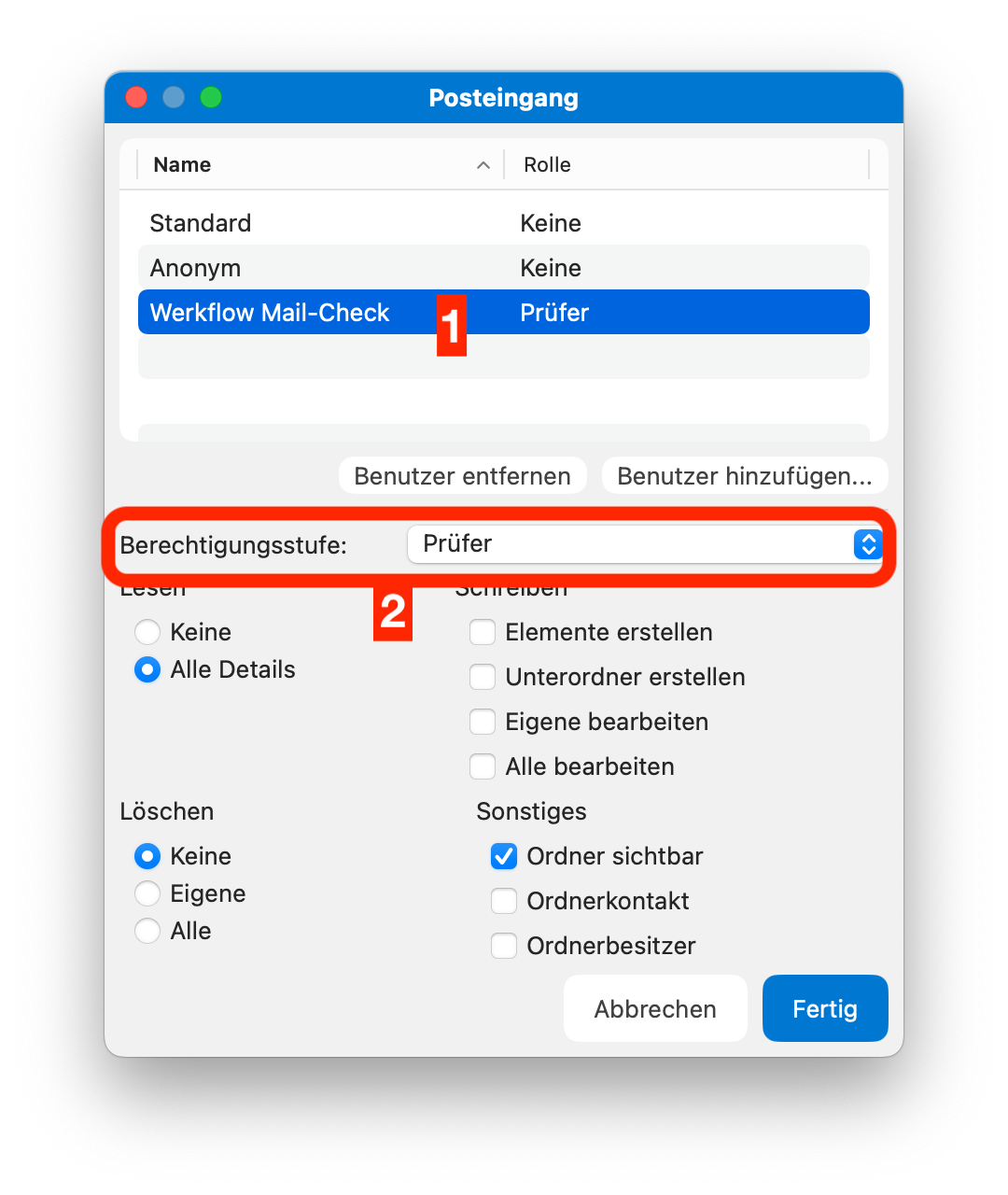
</td></tr><tr style="height: 477.95px;"><td style="height: 477.95px;">Will man, dass die andere Person **nur lesen** kann, dann wählt man die Berechtigungsstufe **Prüfer** aus.  
</td><td style="height: 477.95px;">[![Bildschirmfoto 2024-10-10 um 09.44.51.png](https://manual.ssmarchitekten.ch/uploads/images/gallery/2024-10/scaled-1680-/bildschirmfoto-2024-10-10-um-09-44-51.png)](https://manual.ssmarchitekten.ch/uploads/images/gallery/2024-10/bildschirmfoto-2024-10-10-um-09-44-51.png)

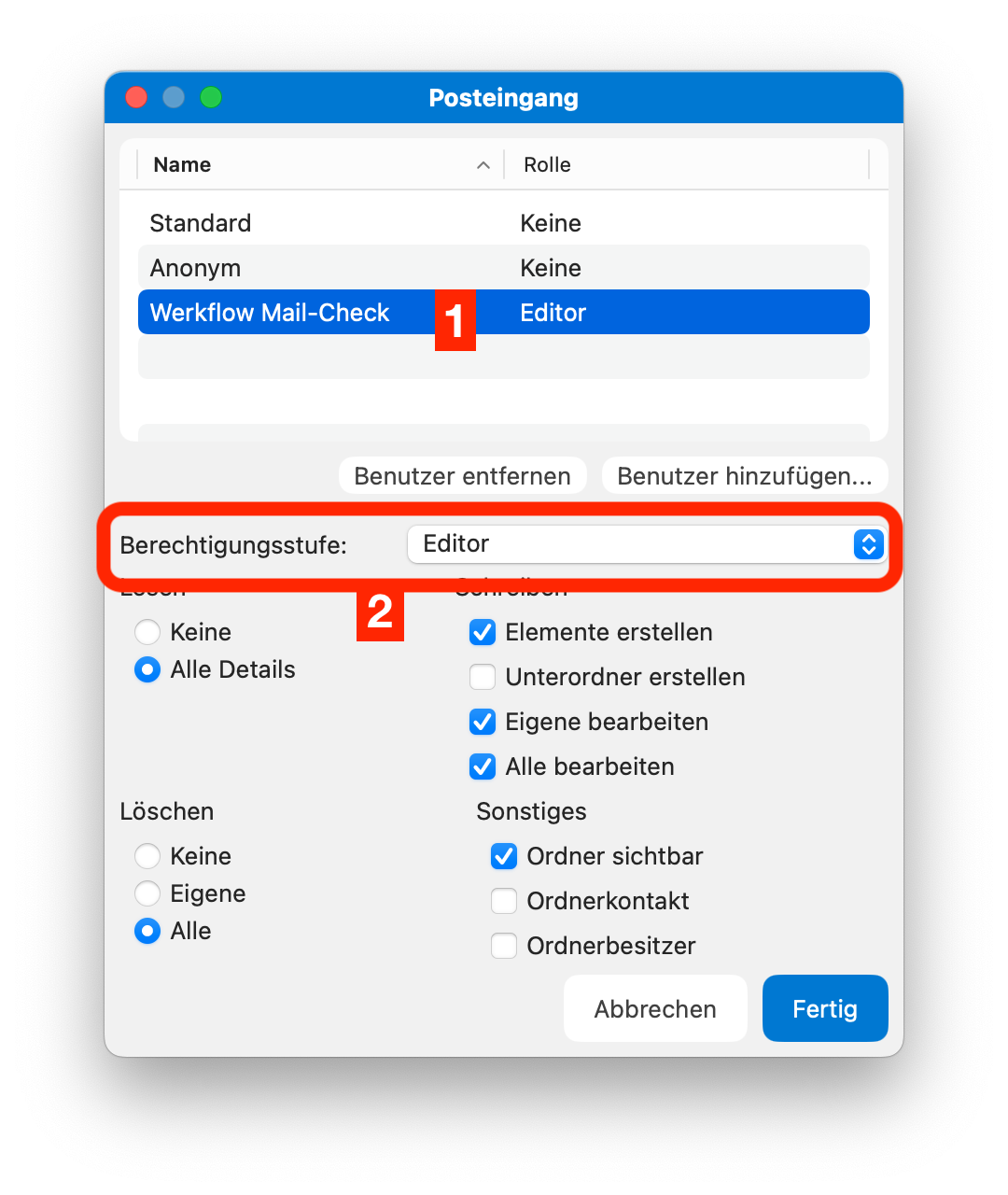
</td></tr><tr style="height: 477.95px;"><td style="height: 477.95px;">Will man, dass die andere Person **auch löschen** kann, dann wählt man die Berechtigungsstufe **Editor** aus.</td><td style="height: 477.95px;">[![Bildschirmfoto 2024-10-10 um 09.44.56.png](https://manual.ssmarchitekten.ch/uploads/images/gallery/2024-10/scaled-1680-/bildschirmfoto-2024-10-10-um-09-44-56.png)](https://manual.ssmarchitekten.ch/uploads/images/gallery/2024-10/bildschirmfoto-2024-10-10-um-09-44-56.png)

</td></tr></tbody></table>

# Mail-Ordner abonnieren

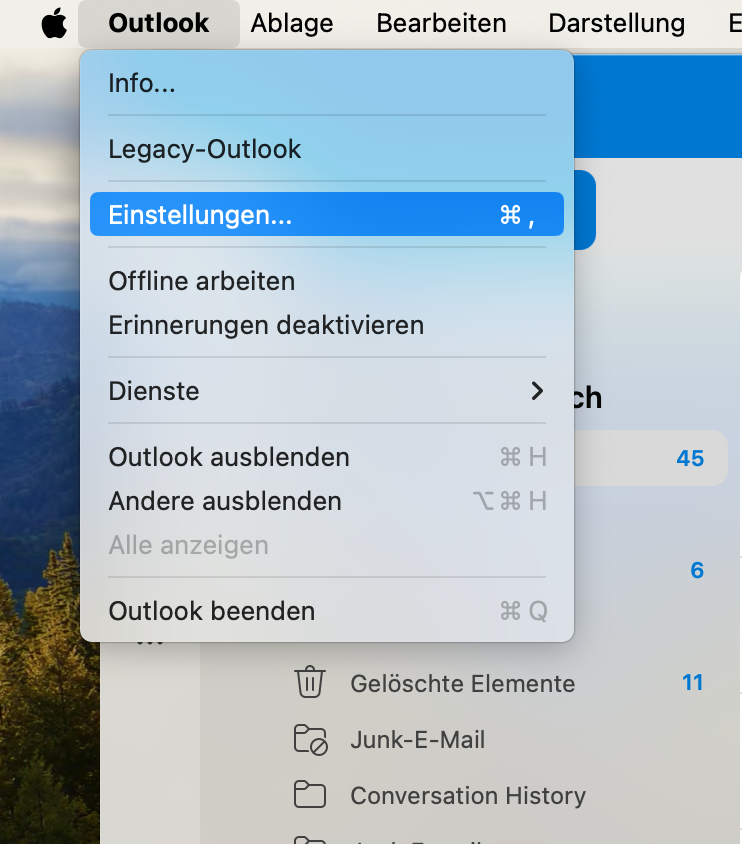
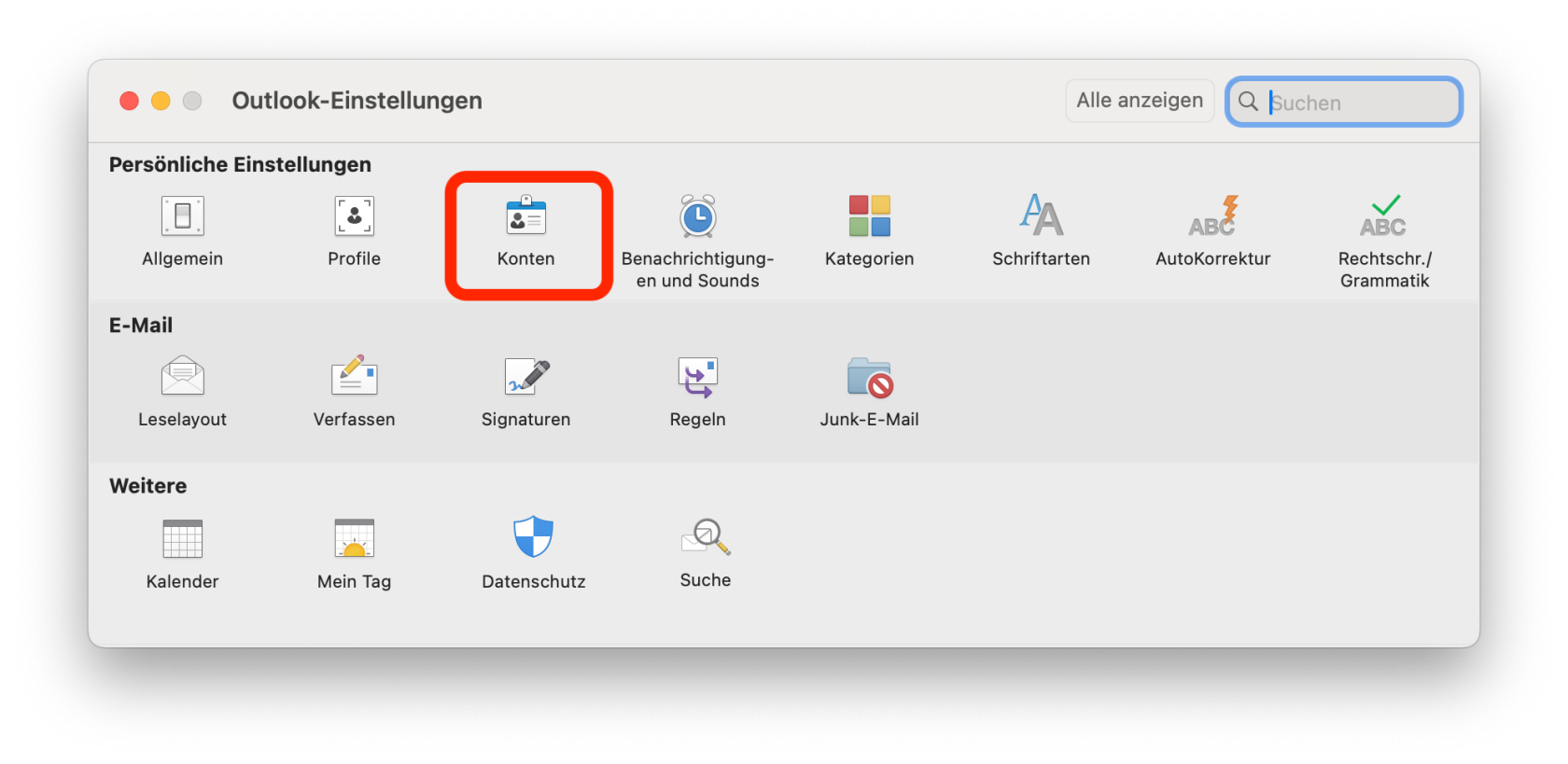
<table border="1" id="bkmrk-in-die-outlook-einst" style="border-collapse: collapse; width: 100%; height: 845.867px;"><colgroup><col style="width: 50%;"></col><col style="width: 50%;"></col></colgroup><tbody><tr style="height: 459.467px;"><td style="height: 459.467px;">In die **Outlook-Einstellungen** gehen  
</td><td style="height: 459.467px;">[![Bildschirmfoto 2024-10-10 um 09.55.08.png](https://manual.ssmarchitekten.ch/uploads/images/gallery/2024-10/scaled-1680-/hJcbildschirmfoto-2024-10-10-um-09-55-08.png)](https://manual.ssmarchitekten.ch/uploads/images/gallery/2024-10/hJcbildschirmfoto-2024-10-10-um-09-55-08.png)

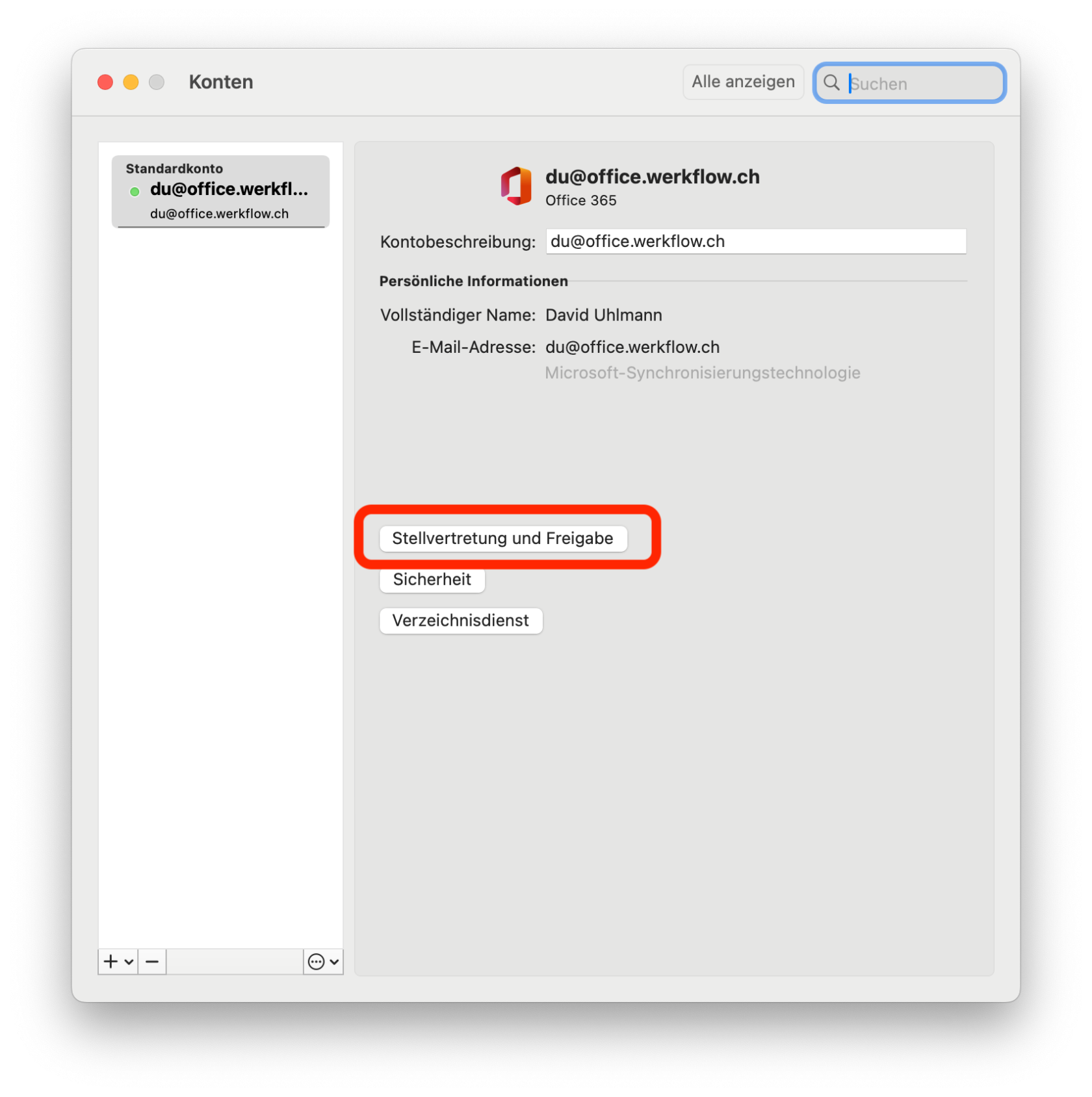
</td></tr><tr style="height: 207.6px;"><td style="height: 207.6px;">**Konten** auswählen

</td><td style="height: 207.6px;">[![Bildschirmfoto 2024-10-10 um 09.55.13.png](https://manual.ssmarchitekten.ch/uploads/images/gallery/2024-10/scaled-1680-/bildschirmfoto-2024-10-10-um-09-55-13.png)](https://manual.ssmarchitekten.ch/uploads/images/gallery/2024-10/bildschirmfoto-2024-10-10-um-09-55-13.png)</td></tr><tr style="height: 29.8px;"><td style="height: 29.8px;">**Stellvertretung und Freigabe** öffnen  
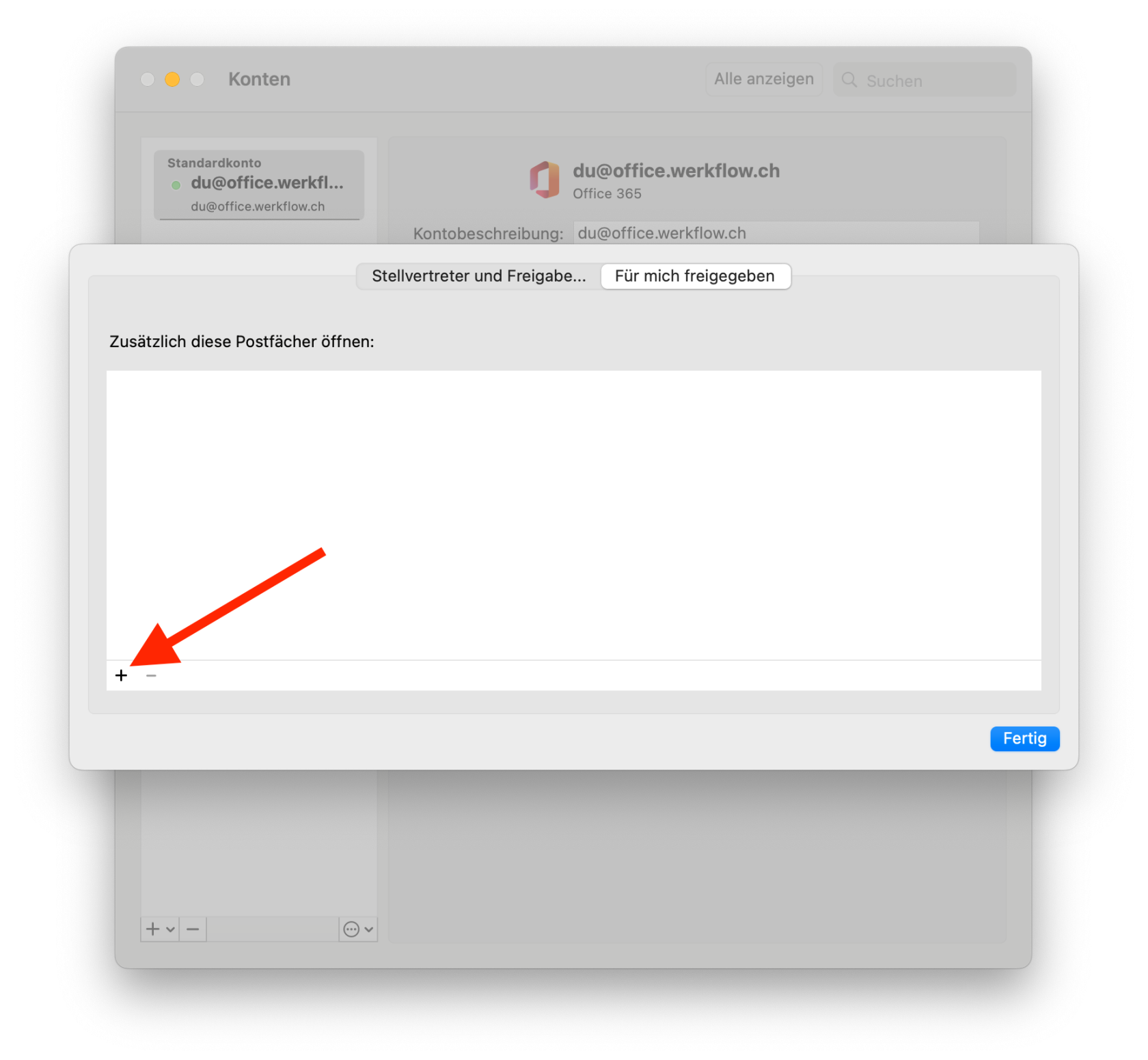
</td><td style="height: 29.8px;">[![Bildschirmfoto 2024-10-10 um 09.55.17.png](https://manual.ssmarchitekten.ch/uploads/images/gallery/2024-10/scaled-1680-/bildschirmfoto-2024-10-10-um-09-55-17.png)](https://manual.ssmarchitekten.ch/uploads/images/gallery/2024-10/bildschirmfoto-2024-10-10-um-09-55-17.png)

</td></tr><tr style="height: 29.8px;"><td style="height: 29.8px;">  
</td><td style="height: 29.8px;">[![Bildschirmfoto 2024-10-10 um 09.55.28.png](https://manual.ssmarchitekten.ch/uploads/images/gallery/2024-10/scaled-1680-/bildschirmfoto-2024-10-10-um-09-55-28.png)](https://manual.ssmarchitekten.ch/uploads/images/gallery/2024-10/bildschirmfoto-2024-10-10-um-09-55-28.png)

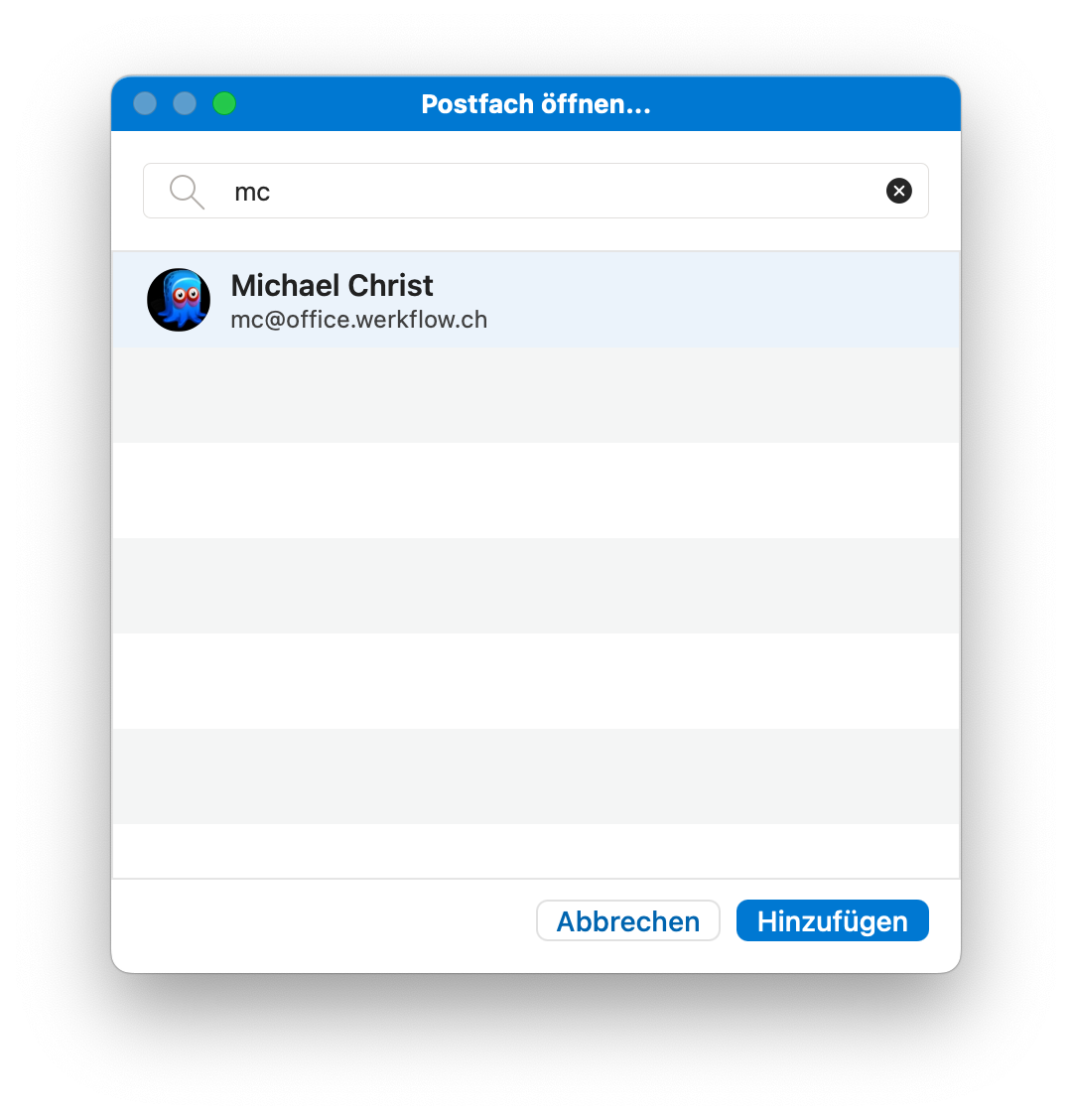
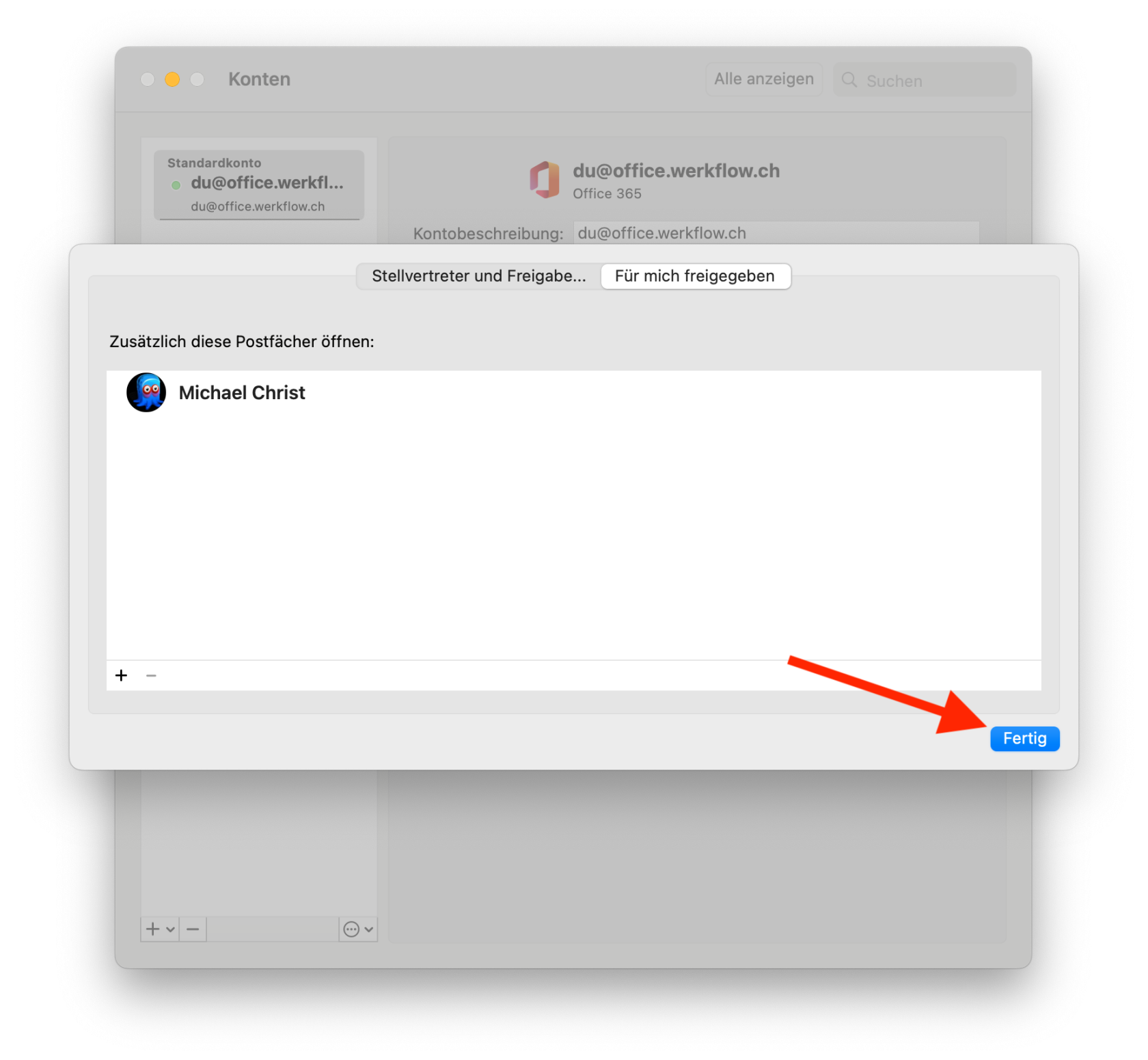
</td></tr><tr style="height: 29.8px;"><td style="height: 29.8px;">Gewünschten Benutzer/Mailbox suchen und auf **Hinzufügen** klicken  
</td><td style="height: 29.8px;">[![Bildschirmfoto 2024-10-10 um 09.55.44.png](https://manual.ssmarchitekten.ch/uploads/images/gallery/2024-10/scaled-1680-/bildschirmfoto-2024-10-10-um-09-55-44.png)](https://manual.ssmarchitekten.ch/uploads/images/gallery/2024-10/bildschirmfoto-2024-10-10-um-09-55-44.png)

</td></tr><tr style="height: 29.8px;"><td style="height: 29.8px;">  
</td><td style="height: 29.8px;">[![Bildschirmfoto 2024-10-10 um 09.55.53.png](https://manual.ssmarchitekten.ch/uploads/images/gallery/2024-10/scaled-1680-/bildschirmfoto-2024-10-10-um-09-55-53.png)](https://manual.ssmarchitekten.ch/uploads/images/gallery/2024-10/bildschirmfoto-2024-10-10-um-09-55-53.png)

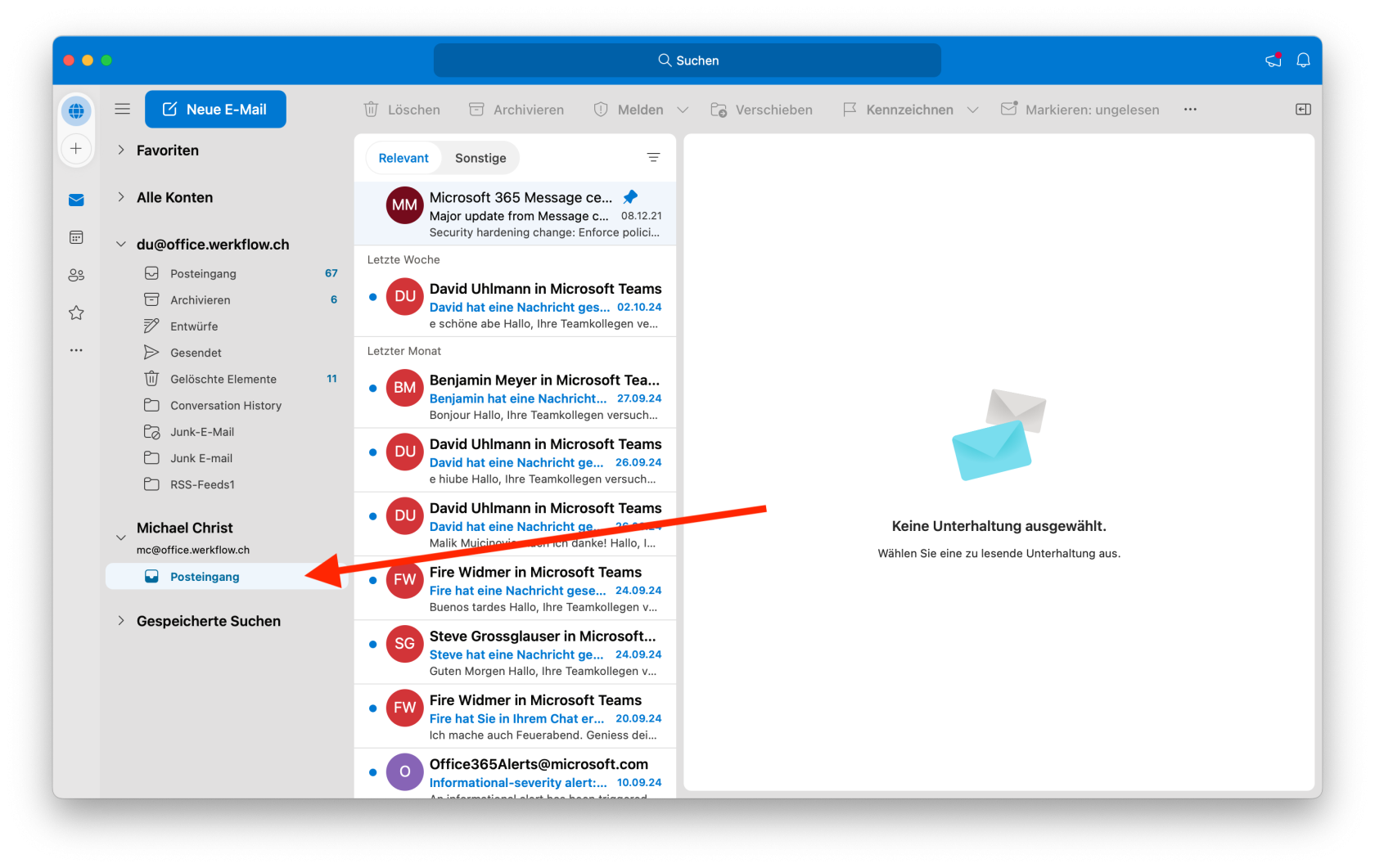
</td></tr><tr style="height: 29.8px;"><td style="height: 29.8px;">Die Mailbox erscheint nun in der Liste und darin der freigebene Ordner.  
</td><td style="height: 29.8px;">[![Bildschirmfoto 2024-10-10 um 09.57.33.png](https://manual.ssmarchitekten.ch/uploads/images/gallery/2024-10/scaled-1680-/bildschirmfoto-2024-10-10-um-09-57-33.png)](https://manual.ssmarchitekten.ch/uploads/images/gallery/2024-10/bildschirmfoto-2024-10-10-um-09-57-33.png)

</td></tr></tbody></table>